
English
English
Appearance
In-app notifications are SmartTable's built-in messaging mechanism. Notifications generated by the system (registration welcome, password changes, collaboration sharing, approval routing, workflow execution results, and more) are pushed directly to the user's message list inside the product. Users can read them right after signing in, without relying on an external mailbox.
Before in-app notifications were introduced, system notifications relied entirely on email, which had clear shortcomings in practice:
| Problem | Description |
|---|---|
| SMTP dependency | Deployments without a configured mail service received no notifications at all |
| Intranet limitations | Private or offline deployments often cannot reach external mail servers |
| Unreliable delivery | Emails may be flagged as spam or blocked by gateways |
| Inconvenient access | Users had to switch to an email client, breaking the flow of work |
In-app notifications use an in-app first strategy: a notification is always written to the in-app message list, so users can always see it inside the system. If a mail service is also configured, an email is sent as a supplement. Even if email delivery fails, in-app notifications remain unaffected.
Every in-app notification carries a source label, shown as a colored tag in the interface:
| Source | Interface Label | Typical Content |
|---|---|---|
system | System | System-level announcements and notices |
auth | Auth | Registration welcome, password changes, account security |
admin | Admin | Notifications related to administrator operations |
workflow | Workflow | Workflow execution result notifications |
approval | Approval | Approval initiation, routing, and result notifications |
After signing in, a bell icon appears on the right side of the top navigation bar:
99+.Clicking the bell opens the notification panel, which has three parts:
When there are no notifications, the panel shows "No notifications".
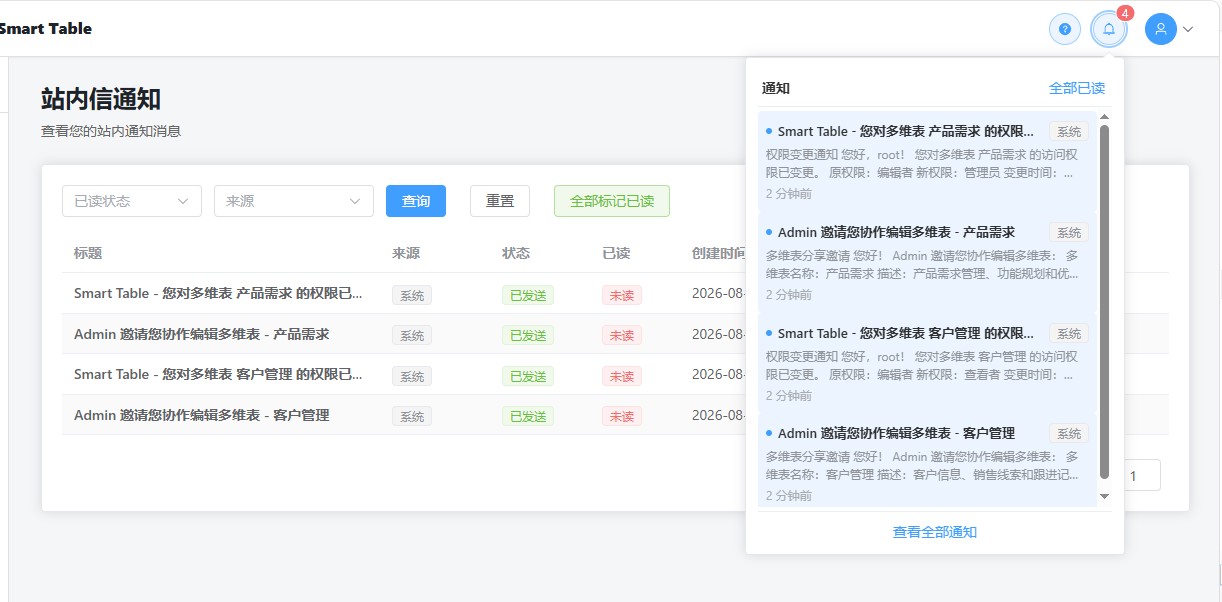
Click "View All Notifications" at the bottom of the panel, or navigate directly to the /notifications route, to open the full notification list page. This page supports paginated browsing of all historical notifications and allows filtering by read status, source, and other conditions.
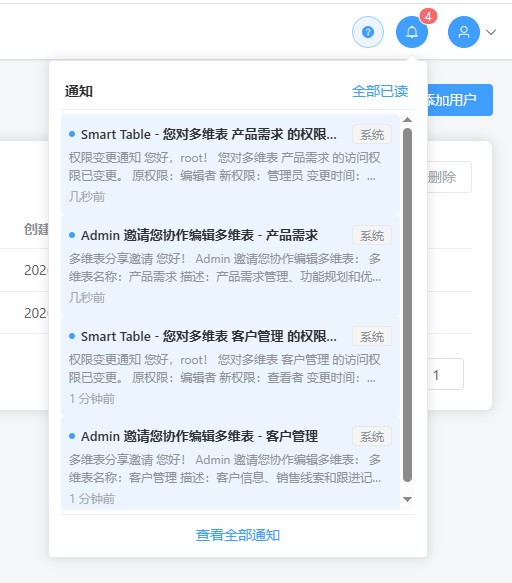
Click any unread notification in the panel. The system automatically marks it as read, decreases the unread badge count accordingly, and navigates to the notification list page to show the full content.
Click the "Mark All as Read" button in the panel header to mark all unread notifications of the current user as read at once. A confirmation message appears on success.
The button is disabled when the unread count is 0.
You can delete notifications you no longer need from the notification list page. Deletion cannot be undone, so proceed with care.
In-app notifications are strictly isolated per user. Each user can only view, mark, and delete notifications sent to themselves, and cannot access other users' messages.
The following actions automatically generate in-app notifications:
| Scenario | Recipient | Source |
|---|---|---|
| New user registration | The registered user | Auth |
| Password change | The account owner | Auth |
| Collaboration share invitation | The invited collaborator | System |
| Approval initiation | The approver | Approval |
| Approval routing and result | The initiator and related approvers | Approval |
| Workflow execution notification | Recipients configured in the workflow | Workflow |
The "Workflow execution notification" row is produced by the Internal Message Node in workflow automation. That node supports five recipient sources — specific members, member field, workflow trigger user, record creator, and all space members — and sends in-app messages only, without going through the email channel. See Internal Message Node for details.
System administrators can review the operational status of in-app notifications in the admin area:
| Feature | Entry Path | Description |
|---|---|---|
| Notification logs | /admin/notifications/logs | View delivery records, statuses, and failure reasons across the site |
| Notification statistics | /admin/notifications/stats | View delivery volume, success rates, and other statistics |
Notifications have four delivery statuses:
| Status | Interface Label | Meaning |
|---|---|---|
pending | Pending | Created but not yet processed for delivery |
sent | Sent | Delivered successfully |
failed | Failed | Delivery failed; error details are available |
retrying | Retrying | Retrying after a failed delivery |
These admin entries require the administrator role.
Q1: Can I receive notifications without configuring a mail service?
Yes. In-app notifications do not depend on email. Environments without SMTP configured can still receive and read all in-app notifications normally.
Q2: Why isn't the unread count on the bell updating immediately?
The unread count is fetched when the page loads. If you stay on the same page for a long time, refresh the page to get the latest unread count.
Q3: How long are notifications retained?
In-app notifications are stored persistently. Unless you delete them, you can browse historical records on the notification list page at any time.
Q4: Can I turn off a specific type of notification?
The current version does not support subscribing to or disabling notifications by type. Notifications for all trigger scenarios are delivered normally.
Q5: Will I receive both an in-app notification and an email?
If a mail service is configured, the same event produces both an in-app notification and an email. The in-app notification is the primary channel, and email serves as a supplementary reminder.