
Skip to content

Grouped View

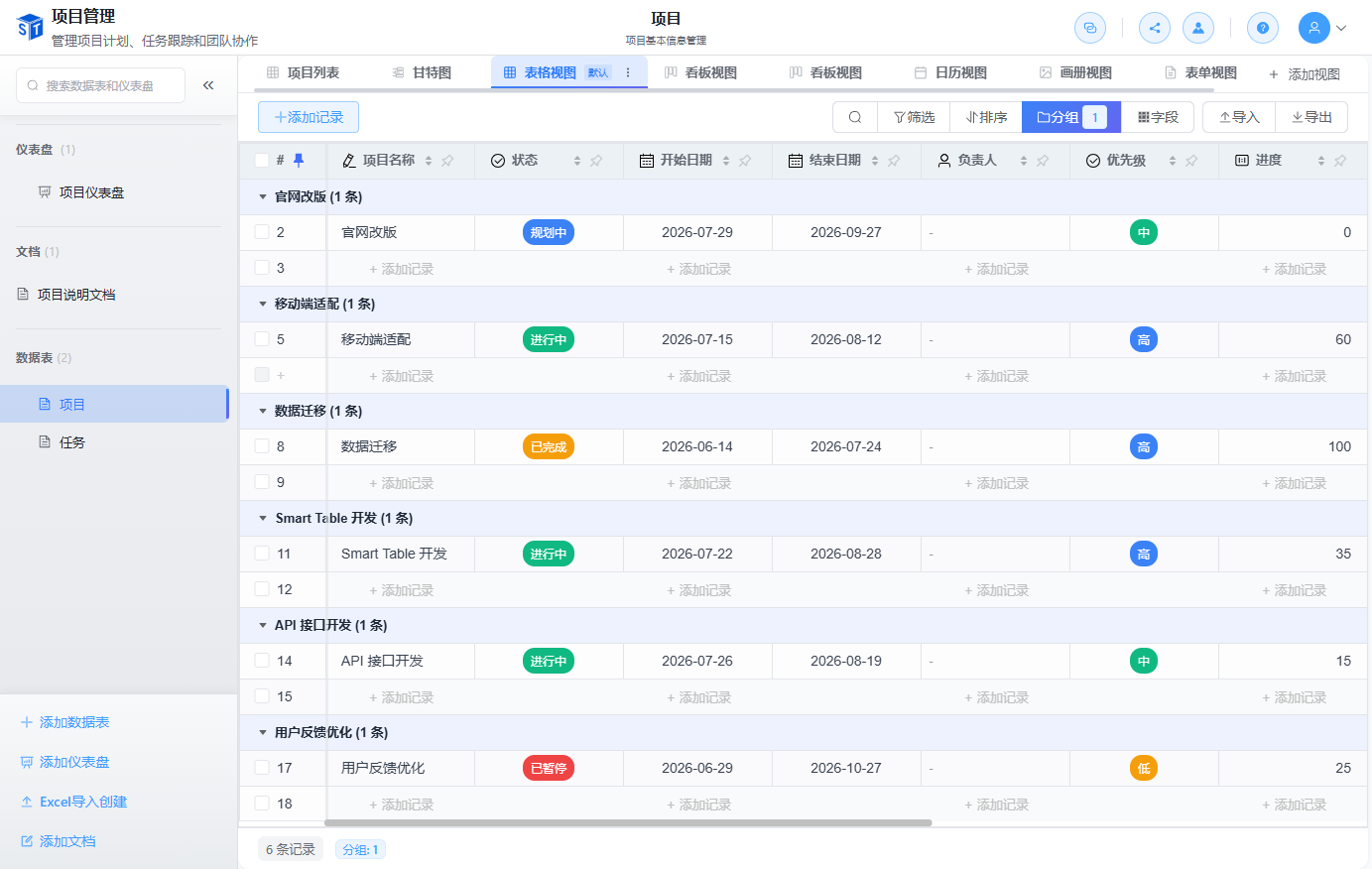
Grouped view is a display mode of the table view. It organizes records into groups based on the value of one or more fields, making it easier to view and summarize data by dimension. SmartTable's grouping capability is embedded in the table view, so you can enable it without creating a separate view type.
When to Use

  • Group tasks or requirements by status
  • View work allocation by owner
  • Group schedules or orders by date
  • Group products or customers by category

Creating Groups

Grouped view
  1. In table view, click the Group button in the toolbar to open the grouping configuration panel.
  2. Select the field to group by. Text, single select, member, date, and other field types are supported.
  3. Up to 3 grouping levels are supported for nested display.
  4. Click Apply, and the table will reorganize records by the grouping fields.

Grouping Operations

Expand/Collapse Groups

  • Click the arrow icon on the left side of a group row to expand or collapse that group.
  • Right-click a group row to select Expand All or Collapse All.

Add Records Within a Group

  • Click the + button at the bottom of a group to add a record directly under that group.
  • New records automatically inherit the grouping field values.

Drag to Adjust Groups

  • Drag a record row to a different group to quickly adjust which group it belongs to.
  • The system automatically updates the corresponding grouping field value.

Group Statistics

Each group supports displaying statistical information, including:

  • Record count
  • Sum/average of numeric fields
  • Summary of fields within the group

Multi-level Grouping

When multiple grouping fields are configured, SmartTable displays them in nested levels according to the field order:

Owner A
  ├── Status: In Progress
  │     ├── Task 1
  │     └── Task 2
  └── Status: Completed
        └── Task 3
Owner B
  └── ...

Combine with Filtering and Sorting

Grouped view can be combined with table view filtering, sorting, and column freezing:

  • Filter records first, then group by field
  • Sort within groups by priority, time, etc.
  • Freeze key columns for easier horizontal scrolling

Best Practice

It is recommended to place grouping fields at the far left of the table and freeze that column so the grouping structure remains clear with large amounts of data.

Next Steps

Released under the MIT License.