
English
English
Appearance
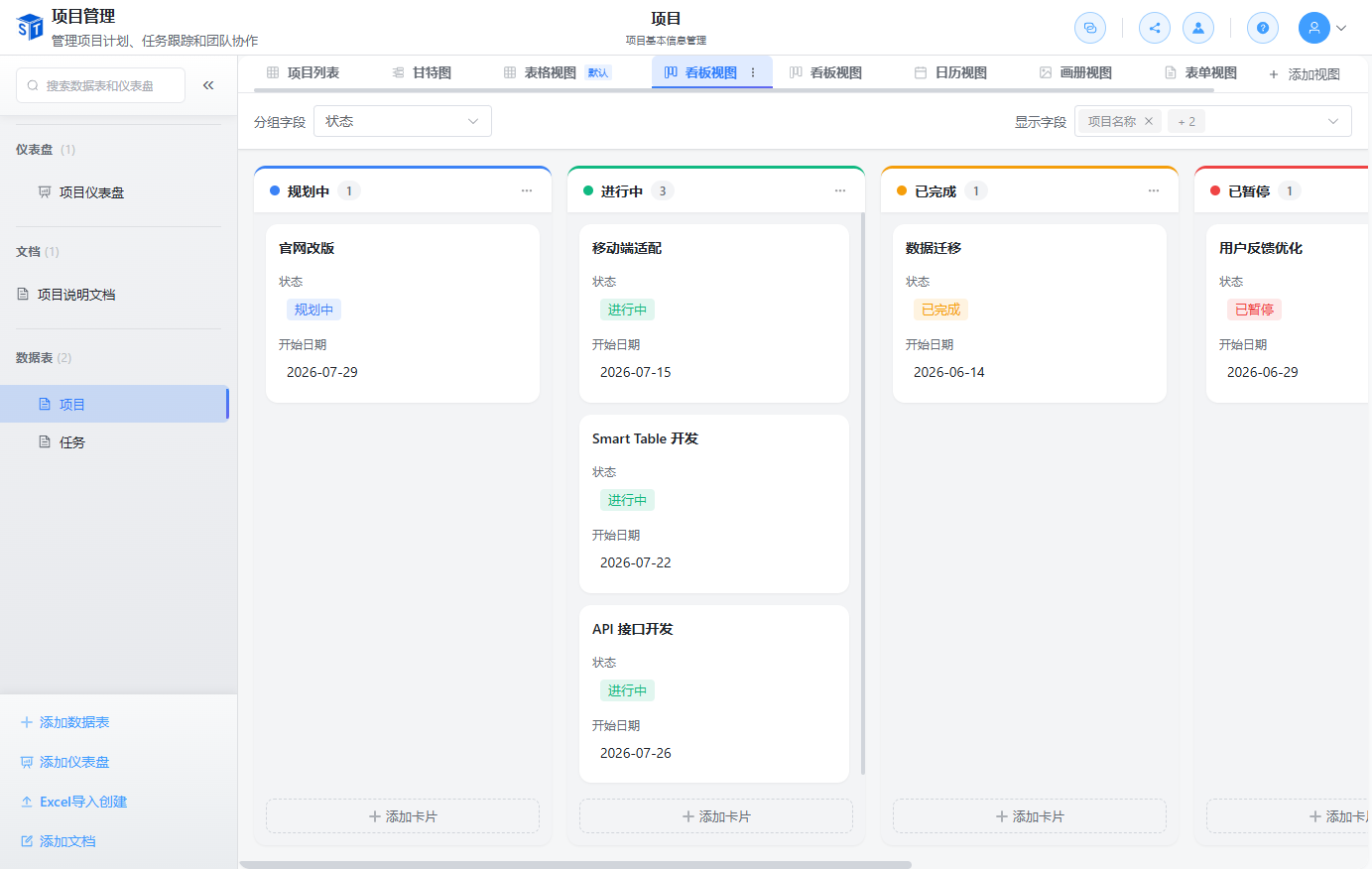
Kanban view turns your table into a card-based board. It is ideal for visualizing workflow stages, task ownership, and project progress.
Cards are grouped into columns based on a select field — usually a status such as To Do, In Progress, or Done. You can drag cards between columns to update their status instantly.
| Feature | Description |
|---|---|
| Column grouping | Columns are created from a Single Select field |
| Drag sorting | Move cards within or between columns |
| Quick edit | Edit key fields directly on the card |
| Filtering | Filter cards by conditions without leaving the board |
| Grouping | Add a second-level group for more organization |
Best Practice
Use a Single Select field for status so cards can be moved cleanly from one column to another.