
Gallery View
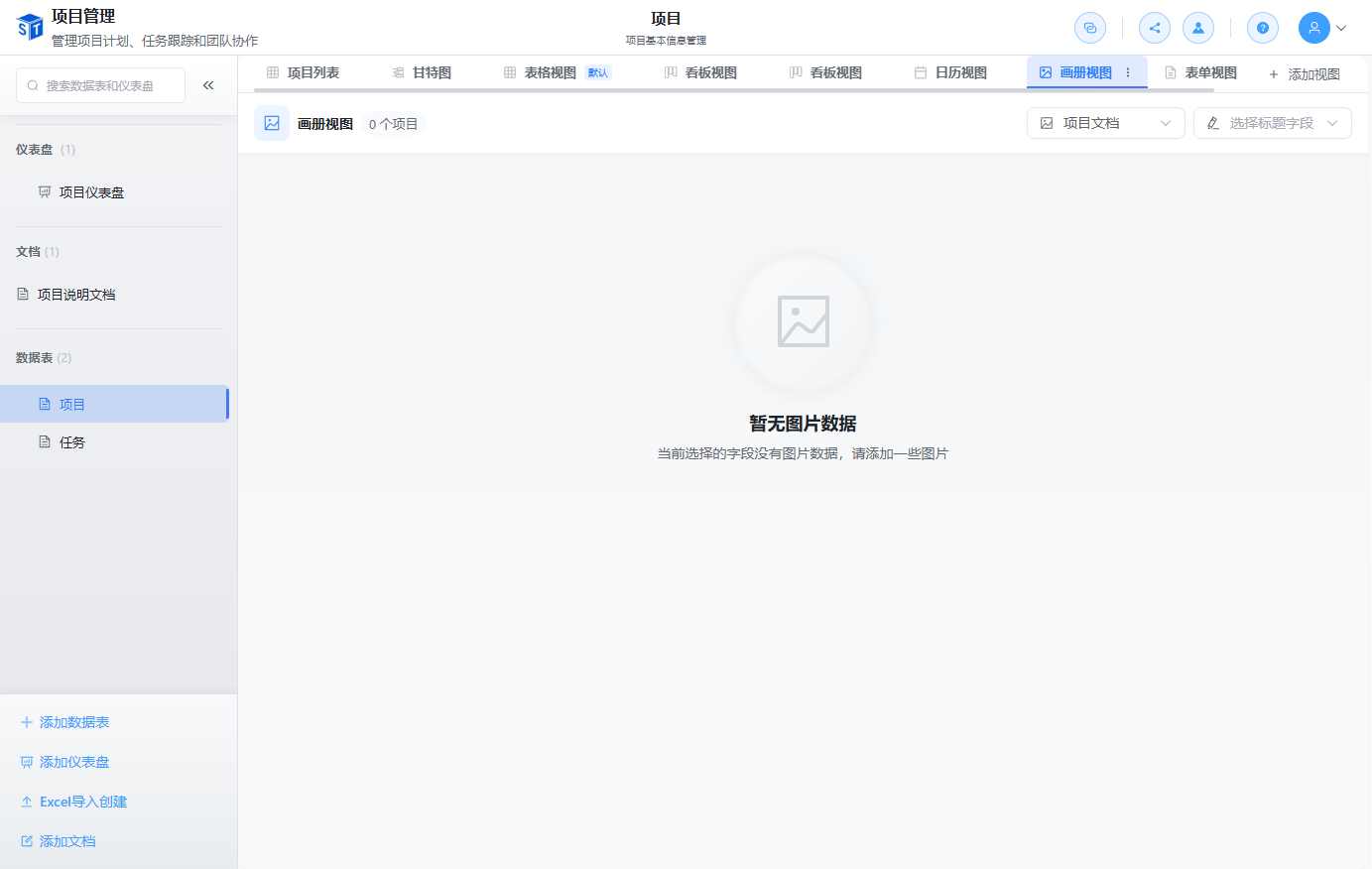
Gallery view displays records as cards, with each card showing a cover image and title. It is ideal for data with attachments or images, such as product catalogs, media libraries, personnel information, and portfolios.
When to Use
- Product catalog display (cover image + product name)
- Image asset library management
- Personnel information cards
- Portfolio or case showcase
Creating a Gallery View

- Click + New View in the view switcher.
- Select the Gallery view type.
- Enter a view name and create it.
Configuring Gallery View
Cover Field
- Gallery view automatically identifies attachment fields in the table as the cover source.
- If multiple attachment fields exist, you can choose which one to use as the cover in the view settings.
- Only records with image attachments are shown with covers; records without images display as coverless cards.
Title Field
- The table's primary field is used as the card title by default.
- The following field types can be selected as the title:
- Single line text
- Number
- Single select
- Formula
- Formula fields are calculated and displayed in real time.
Card Operations
Viewing Images
- Click the cover image on a card to open the image previewer.
- Supports switching between multiple images.
Editing Records
- Click the non-image area of a card to open the record detail drawer for editing.
- Click the edit icon on the card to quickly enter edit mode.
Deleting Records
- Click the delete icon on the card and confirm to delete the record.
Real-time Collaboration
Gallery view supports real-time collaboration:
- The gallery automatically syncs when other users create, update, or delete records.
- Supports replaying data changes after offline recovery.
View Configuration
| Configuration | Description |
|---|---|
| Cover field | Select an attachment field as the card cover |
| Title field | Select the field used as the card title |
| Filter | Filter displayed records by conditions |
| Sort | Sort card order by field |
Cover Display Suggestion
For the best display effect, it is recommended to create a dedicated attachment field for the gallery view and upload images with a consistent aspect ratio.
