
English
English
Appearance
SmartTable organizes data into Bases, Tables, Fields, Records, and Views. This chapter explains how to manage tables and the data inside them.
A base is the top-level container for a project or dataset.
| Action | How To |
|---|---|
| Create a base | Click + New Base, choose blank or template, and enter a name. |
| Rename / star | Open the base menu and choose Rename or Star. |
| Duplicate / delete | Use Duplicate to copy the base, or Delete to remove it. |
| Manage members | Open Members to invite users and assign roles. |
| Share | Enable Base Sharing to create a public or password-protected link. |
Each base can contain multiple tables.
| Action | Description |
|---|---|
| Create table | Click + next to the table tabs and choose blank, template, or import. |
| Rename | Double-click the table tab name, or open the table menu. |
| Drag sort | Drag table tabs to reorder them. |
| Duplicate | Copy the table structure and optionally its data. |
| Delete | Remove the table from the base. |
Import Tip
You can create a new table by importing an Excel, CSV, or JSON file. Multi-sheet Excel files are supported.
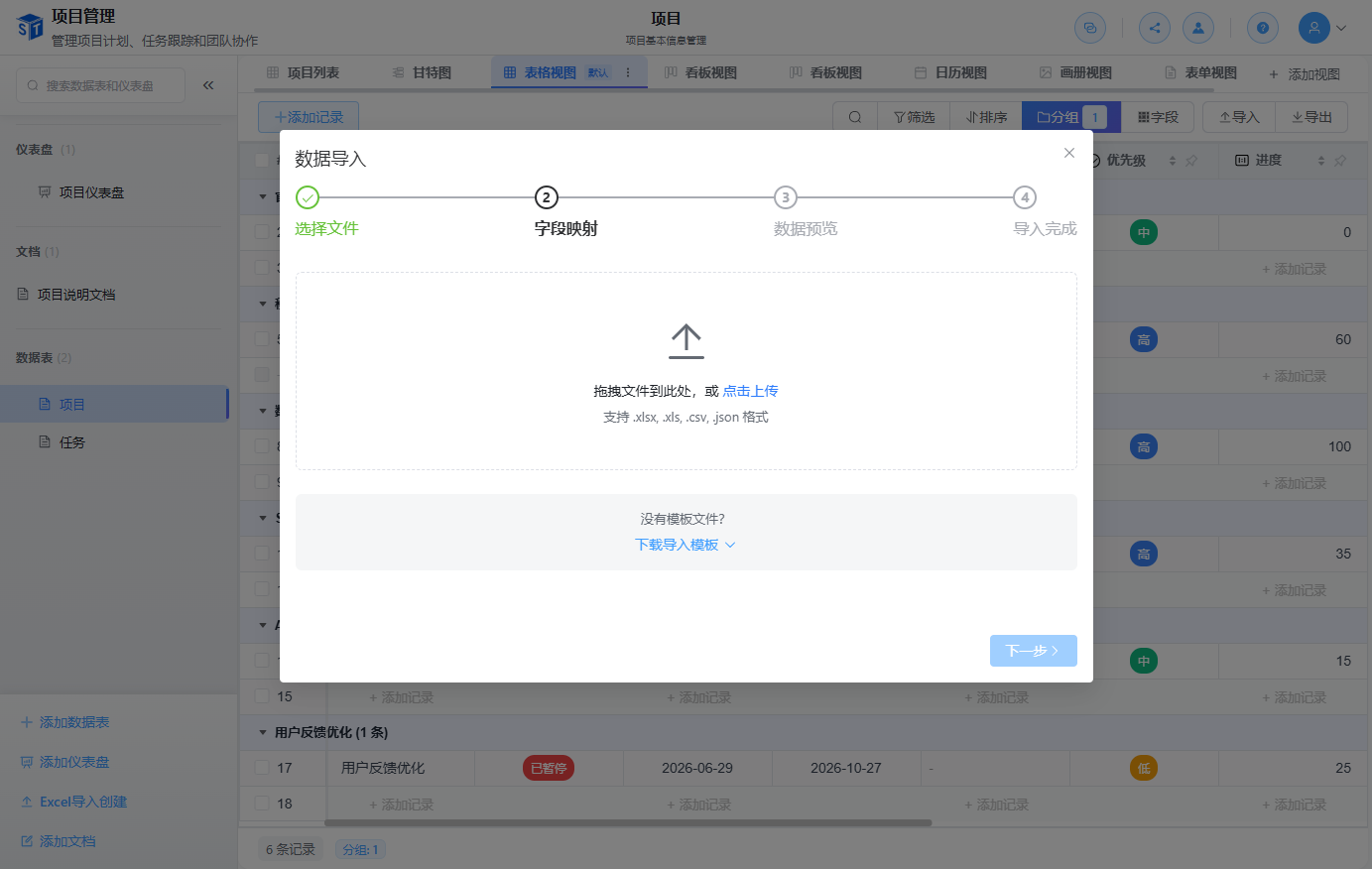
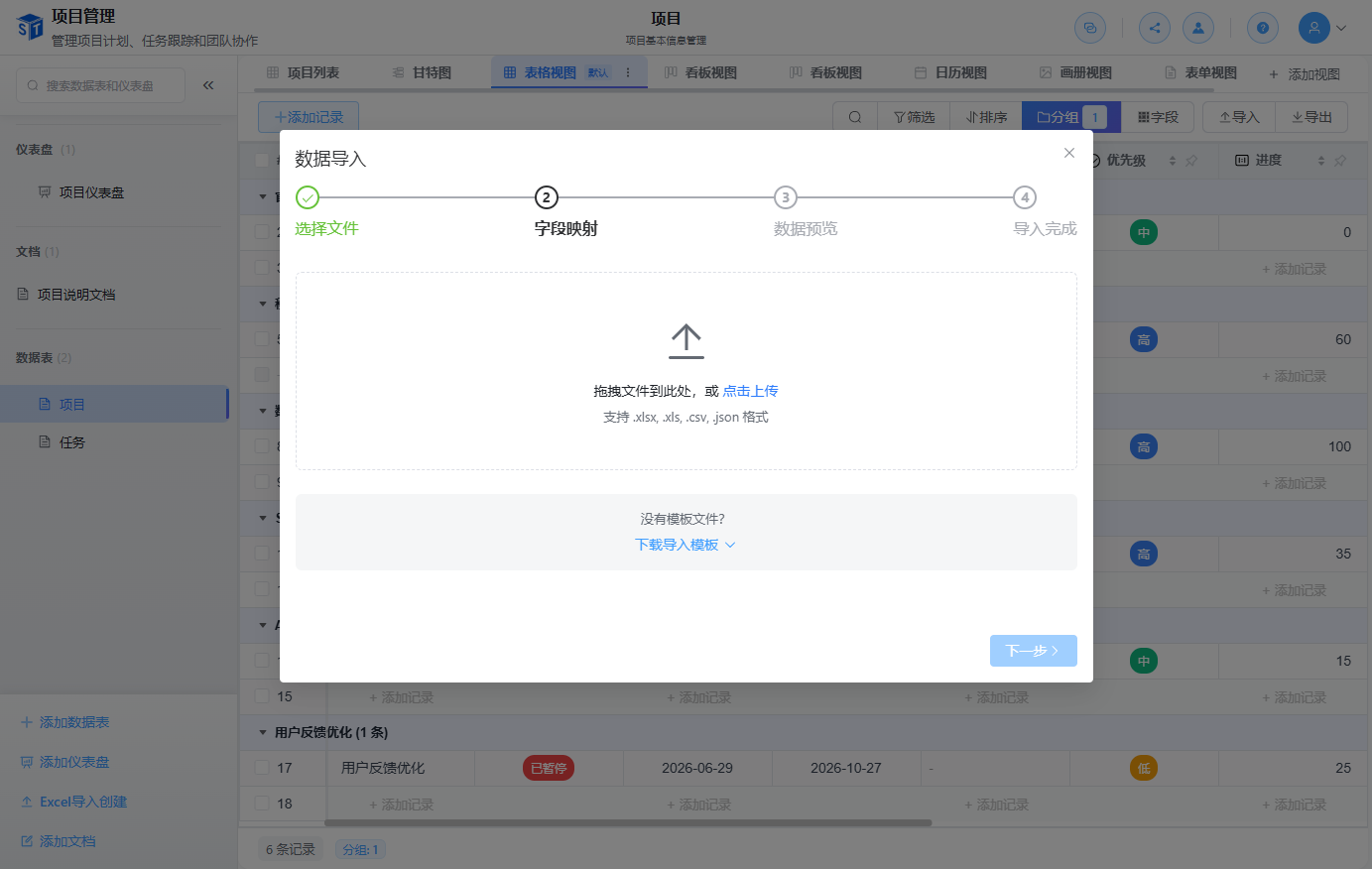
During import, the system displays a field mapping preview so you can confirm the data is parsed correctly:
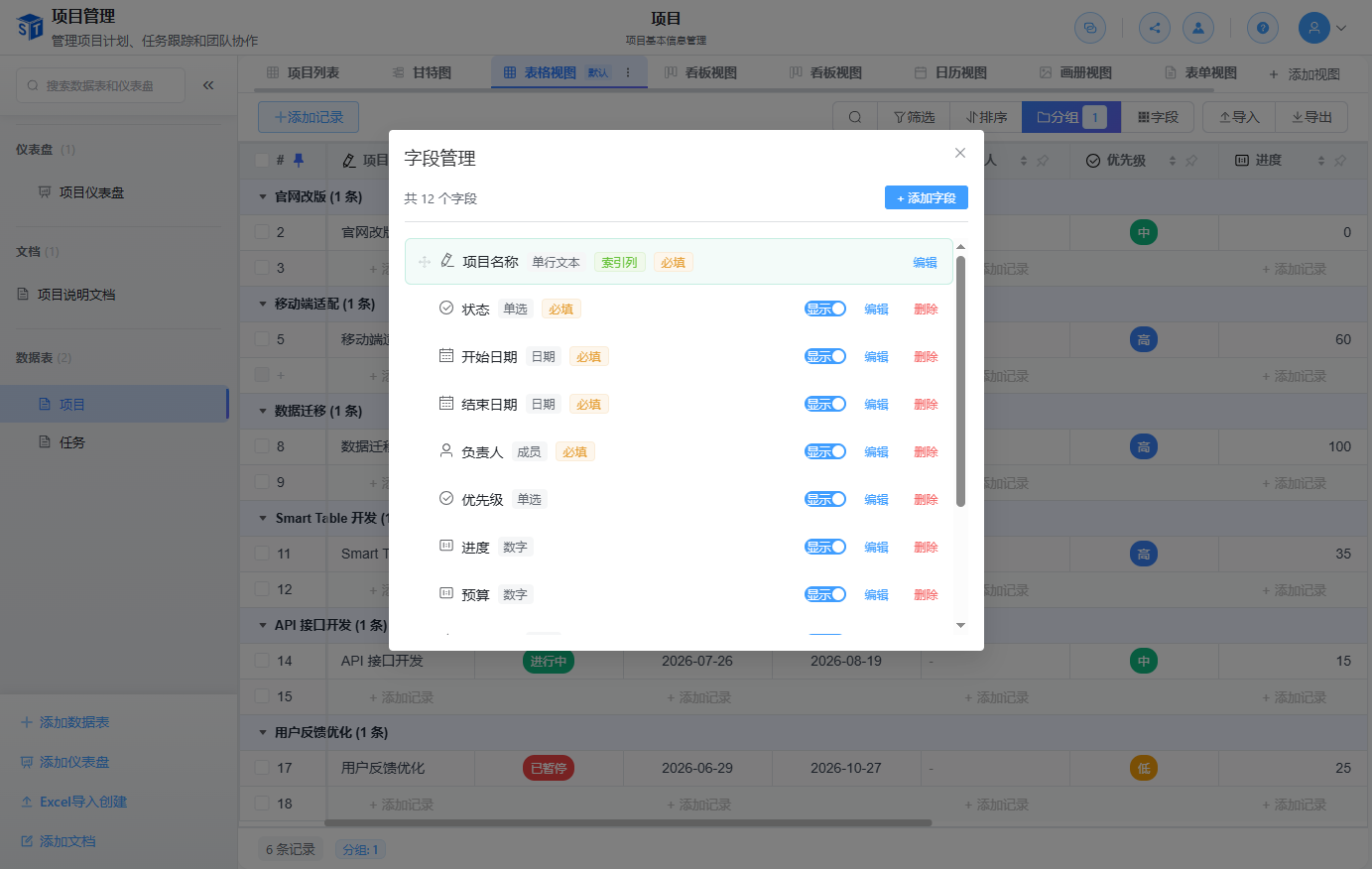
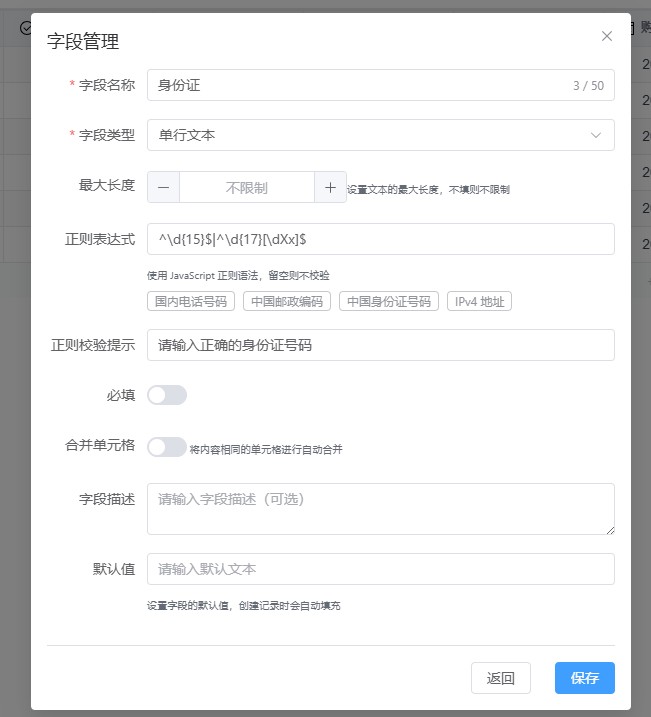
Fields define the structure of each table. SmartTable supports 26 field types. Single Line Text fields additionally support regular expression validation, with custom rules and validation hints, and built-in presets for domestic phone, postal code, ID number, IPv4, and more.
| Task | How To |
|---|---|
| Add a field | Click + at the right end of the header row and choose a type. |
| Configure | Open the field menu to set validation rules, formatting, default values, and options. |
| Sort fields | Drag the column header left or right. |
| Show / hide | Toggle visibility in the view settings. |
| Set default | Define a default value applied to new records. |
See Field Types for a complete reference.
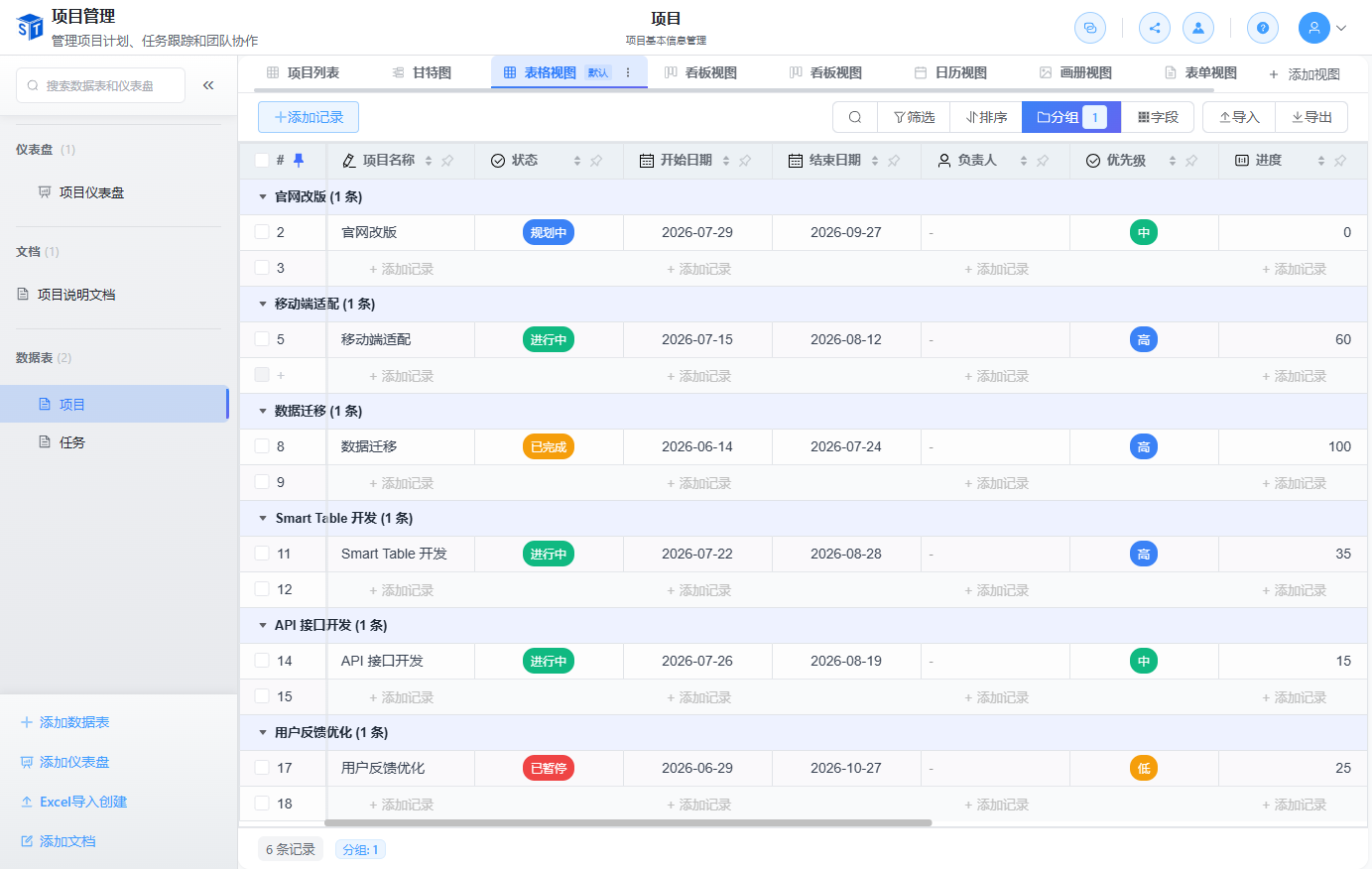
Records are the rows of your table.
| Operation | How To |
|---|---|
| Add a record | Click the + row at the bottom, or press Ctrl + N / Cmd + N. |
| Edit a cell | Click a cell, type the value, and press Enter or click outside. |
| Open detail drawer | Click the row expander or double-click a record to view history and comments. |
| Delete | Select the row and press Delete, or right-click and choose Delete. |
| Batch actions | Select multiple rows with Shift or checkboxes, then apply a bulk operation. |
| Undo / redo | Use Ctrl + Z / Cmd + Z and Ctrl + Y / Cmd + Shift + Z. |
Change History
SmartTable tracks every record change. Open a record's detail panel to see who changed what and when.
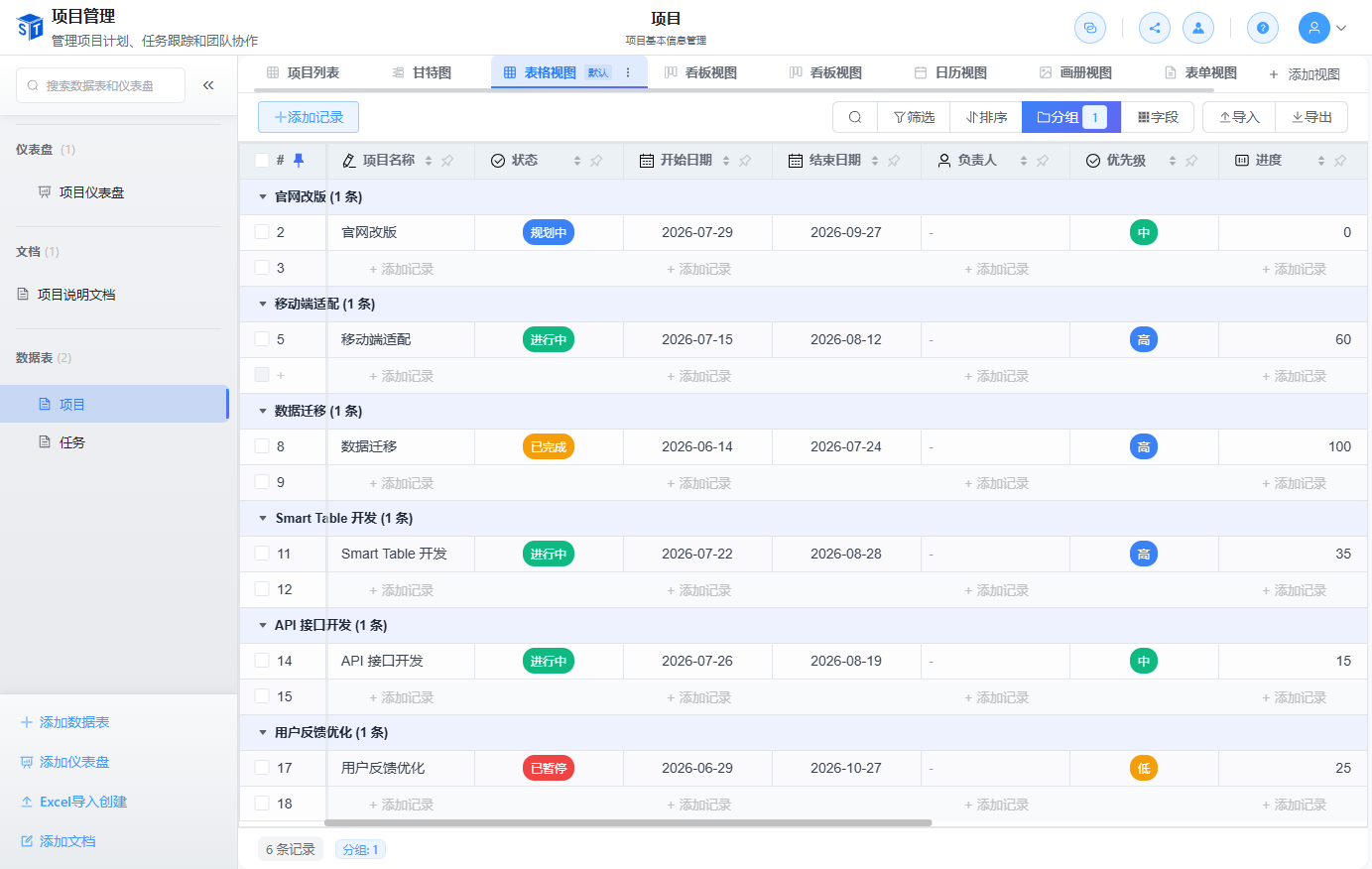
Views let the same table appear in different ways without changing the underlying data.
| Feature | Description |
|---|---|
| Switch view | Use the view tabs or the view switcher in the upper right. |
| Filter | Add one or more conditions; combine with AND/OR logic. |
| Sort | Sort by one or more fields and drag to set priority. |
| Group | Group by up to 3 fields with collapsible sections. |
| Freeze columns | Lock key columns to the left while scrolling. |
| Hide / show fields | Customize which fields appear in the current view. |