Skip to content

Document Management

SmartTable provides independent document management for each Base, supporting the creation, editing, and deletion of rich-text documents, along with version history and PDF export. Document permissions are bound to the Base, making it convenient for teams to accumulate knowledge, specifications, and instructions alongside table data.
When to Use

  • Document project requirements and product descriptions
  • Record data table usage guidelines
  • Write operation manuals or meeting notes
  • Collaborate on knowledge base articles

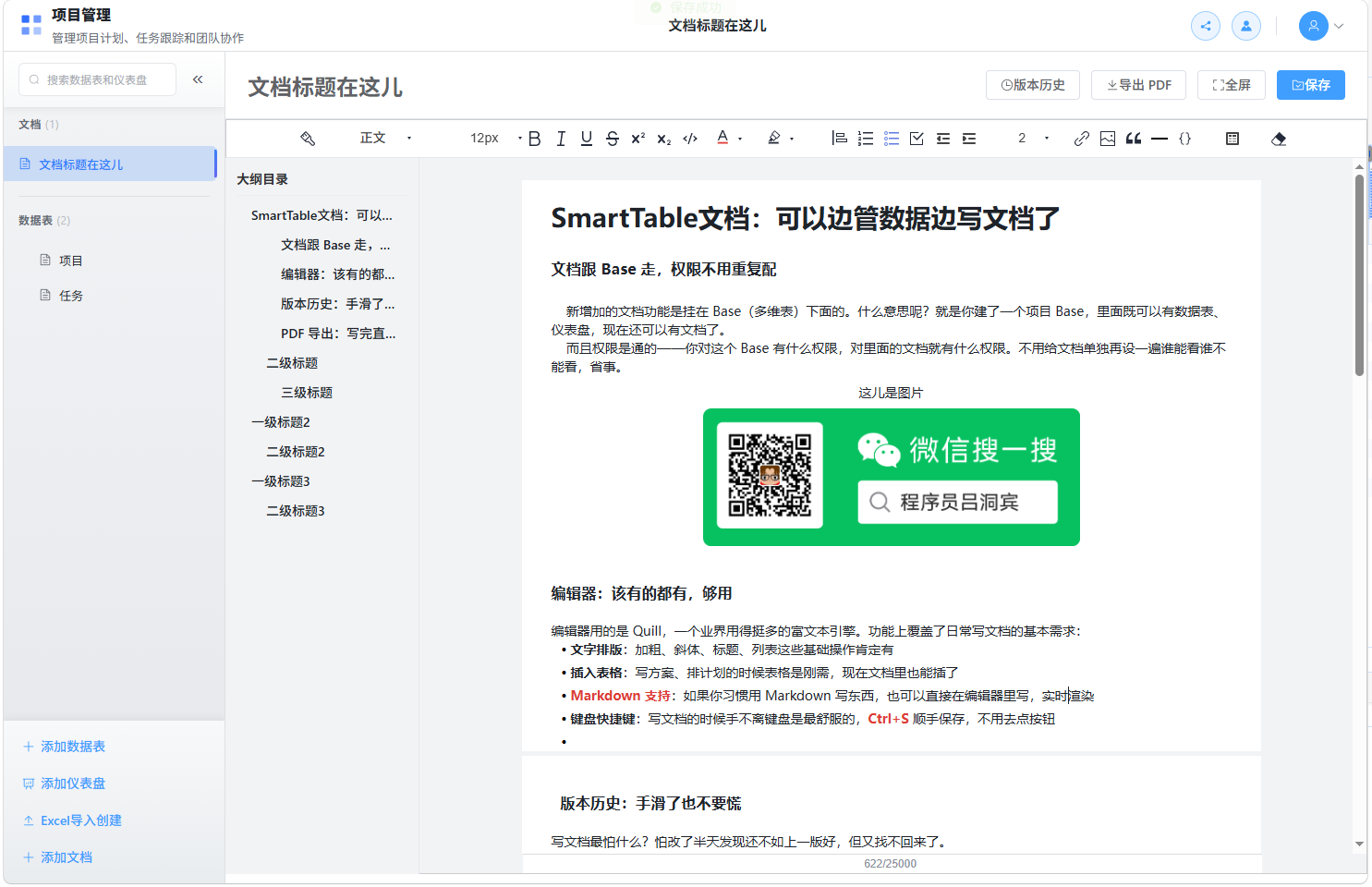
Accessing Document Management

  1. Enter any Base page.
  2. Switch to the Documents tab in the left sidebar.
  3. Click a document name to open the editor, or click + New Document to create one.
Document list

Document Operations

Creating a Document

  • Click the + New Document button at the top of the sidebar.
  • Enter a document title; the system will create and open the editor automatically.

Renaming

  • Right-click a document in the sidebar and select Rename.
  • Alternatively, modify the title directly in the editor header; it will save automatically on blur.

Pinning

  • Right-click a document and select Pin to move it to the top of the list.
  • Select Unpin to restore default sorting.

Deleting

  • Right-click a document and select Delete.
  • Deleted documents cannot be recovered; please export or back up important content in advance.

Rich Text Editor

Document editor

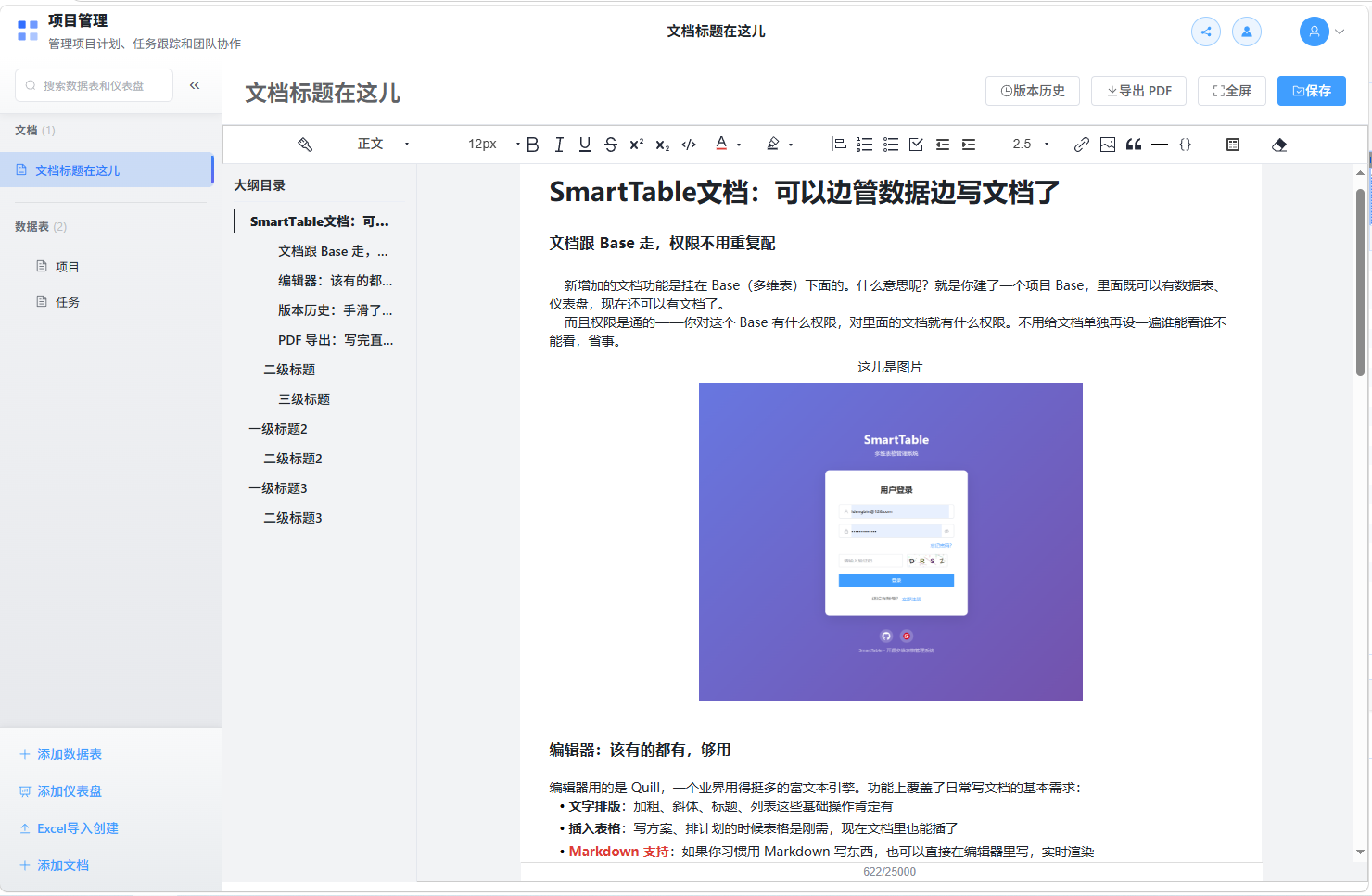
The SmartTable document editor is based on FluentEditor (compatible with the Quill ecosystem), providing professional-grade formatting capabilities.

Basic Formatting

FeatureOperation
HeadingsSupports H1 ~ H6
Bold/Italic/UnderlineToolbar buttons or shortcuts Ctrl/Cmd + B, I, U
StrikethroughStrikethrough toolbar button
Inline CodeInline code toolbar button
BlockquoteBlockquote toolbar button
Ordered/Unordered/Task ListsList toolbar buttons
DividerDivider toolbar button

Advanced Content

  • Tables: Insert and edit tables, adjust rows/columns, and merge cells.
  • Images: Upload local images and insert them into documents.
  • Videos: Insert video links.
  • Code Blocks: Display code blocks.
  • Hyperlinks: Insert links for selected text.
  • Clear Formatting: Remove formatting from selected content with one click.

Markdown Shortcuts

The editor supports common Markdown shortcuts, such as:

  • # Heading for H1
  • ## Heading for H2
  • - Item for unordered lists
  • 1. Item for ordered lists
  • > Quote for blockquotes
  • `code` for inline code

Outline

The editor automatically generates a document outline on the right. Click an outline item to jump to the corresponding heading, making it easier to navigate long documents.

Save Status

The editor header displays the current save status:

  • Saved: Content has been synchronized to the server.
  • Saving...: Auto-saving or manual save in progress.
  • Unsaved changes: Content has been modified but not yet saved.

Shortcut

Press Ctrl/Cmd + S to quickly save the document.

Fullscreen Editing

Click the Fullscreen button in the header to enter fullscreen mode, hiding the browser top bar and sidebar for focused writing. Click again to exit fullscreen.
Version History

Document version history

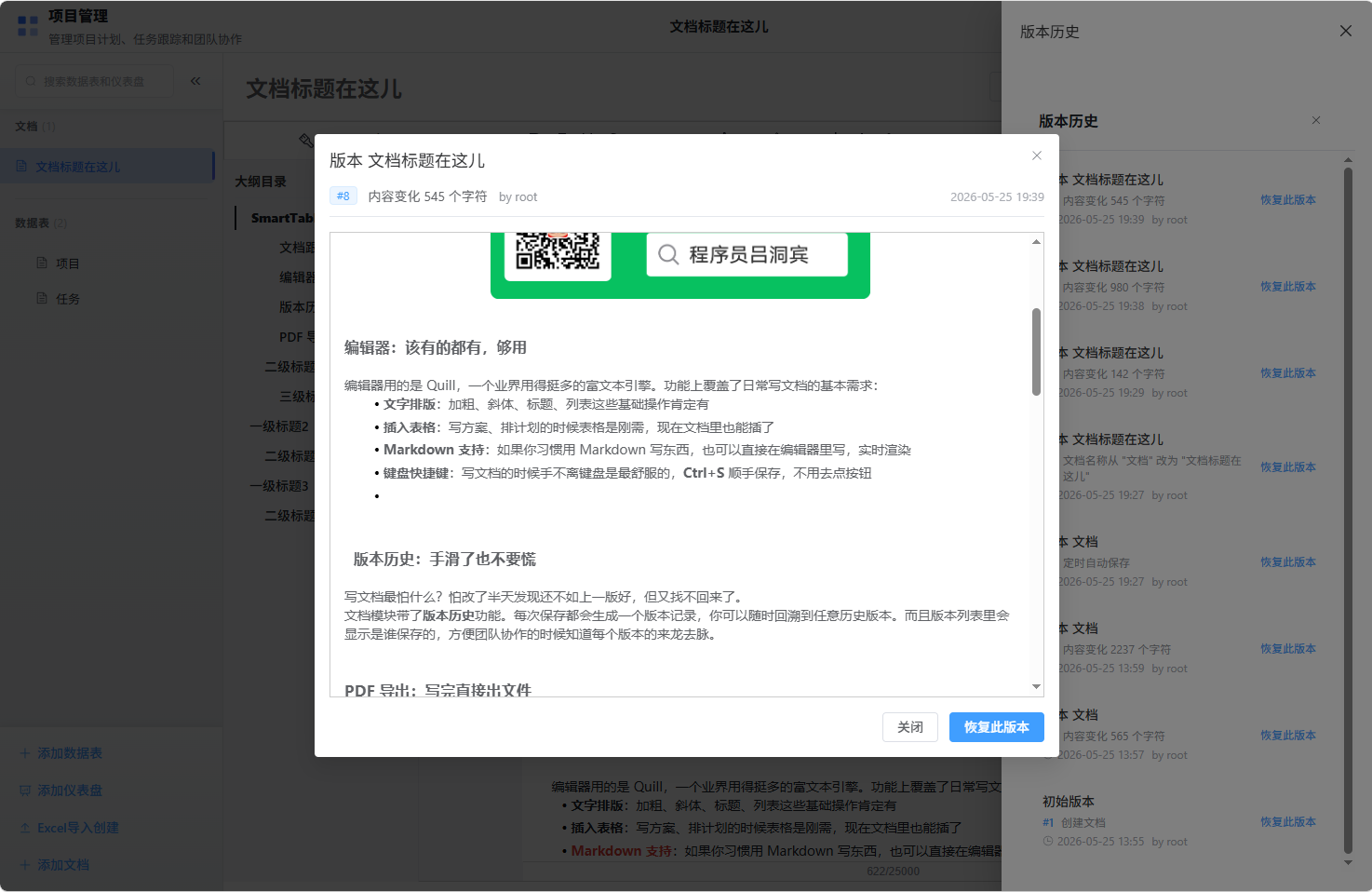
SmartTable automatically creates version snapshots when document content changes significantly, making it easy to review and restore previous versions.
Viewing Version History

  1. Click the Version History button in the document editor header.
  2. A version list panel slides out from the right, showing all historical versions.
  3. Each version displays the version number, change summary, creation time, and creator.

Previewing Historical Versions

  • Click an item in the version list to open a preview window showing the full content of that version.
  • Preview mode does not modify the current document.

Restoring a Version

  • Click Restore this version in the version list or preview window.
  • After confirmation, the current document content rolls back to that version, and a new version record is created.

Version Retention Policy

  • New versions are generated only when document content changes significantly.
  • Versions from the last 30 days are retained, up to a maximum of 50 versions.
  • Metadata changes (such as renaming, sorting, or pinning) do not trigger version creation.

PDF Export

Document PDF export

Documents can be exported to PDF with one click for offline sharing or archiving.

  1. Click the Export PDF button in the editor.
  2. The system renders the document content as a PDF file and downloads it locally.
  3. The exported PDF preserves images, tables, and basic styles from the document.

Permissions

Document permissions follow the Base permission system:

RoleDocument Permissions
Owner / AdminCreate, edit, delete, and view all documents
EditorCreate, edit, and view authorized documents
Commenter / ViewerView documents only

Next Steps

Released under the MIT License.