
Skip to content

Grid View

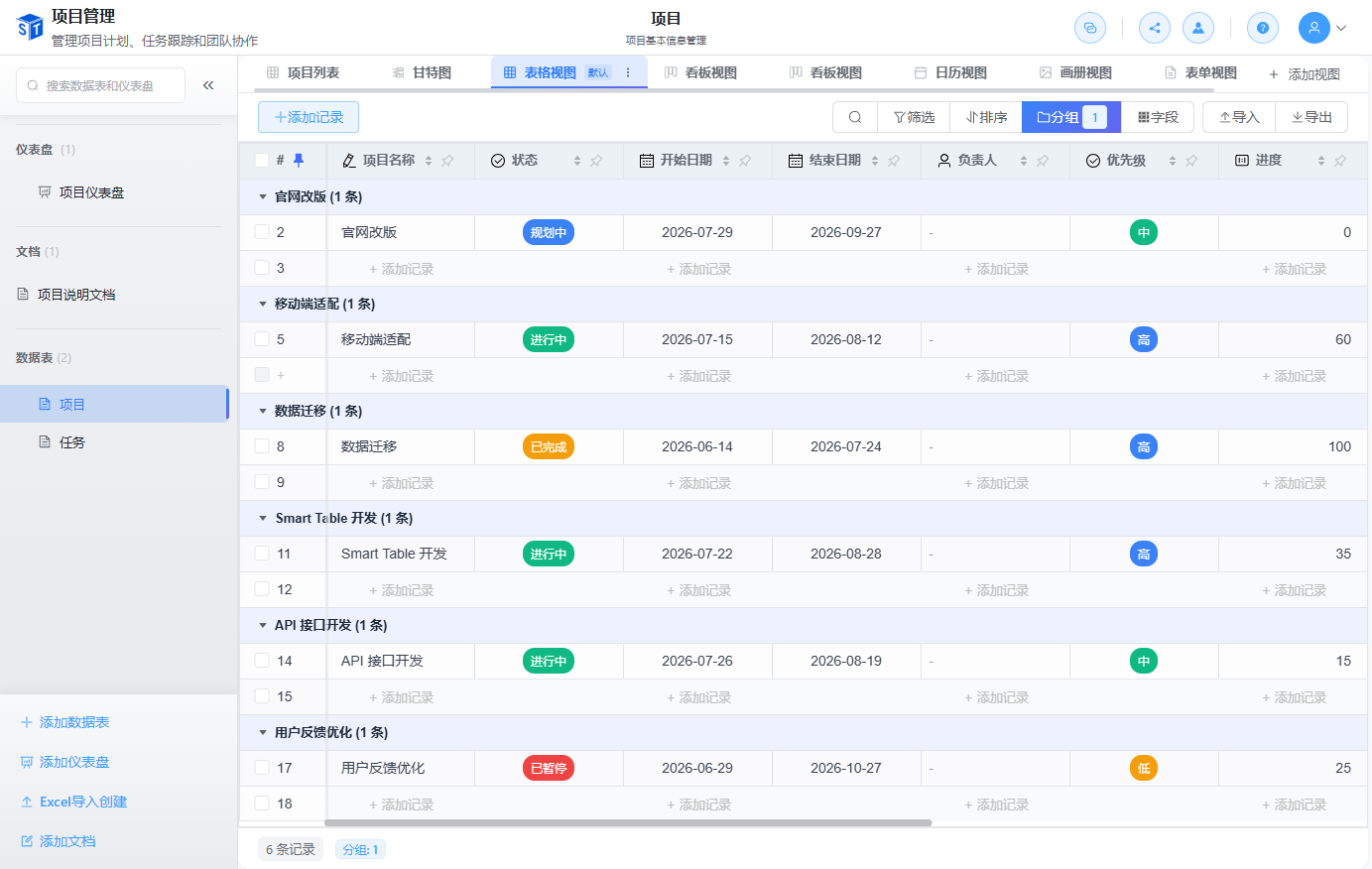
Grid view is the default and most flexible way to work with SmartTable data. It displays records as rows and fields as columns, similar to a spreadsheet, while supporting high-performance virtual scrolling and advanced layout options.
When to Use Grid View

Grid view interface

Use grid view when you need to:

  • Enter or edit many records at once.
  • See a large number of fields side by side.
  • Apply complex filters, sorts, and groupings.
  • Freeze important columns while scrolling.

Sorting

  • Click a column header to sort ascending or descending.
  • Hold the sort indicator to add multi-column sorting.
  • Drag sort indicators to change priority.

Filtering

  • Click the filter icon in a column header for a quick filter.
  • Open the view filter panel to add multiple conditions.
  • Combine conditions with AND or OR logic.

Grouping

  • Group records by one or more fields.
  • Expand or collapse groups.
  • Apply grouping up to 3 levels for nested summaries.

Freeze and Resize Columns

  • Drag the column edge to adjust width; double-click to auto-fit.
  • Freeze columns to keep them visible while scrolling horizontally.
  • Show or hide fields per view without deleting them.

Row and Column Operations

OperationHow To
Add rowClick the + at the bottom or press Ctrl + N / Cmd + N
Delete rowSelect the row and press Delete, or right-click and choose Delete
Move rowDrag the row handle to a new position
Move columnDrag the column header left or right
Batch selectHold Shift and click rows, or use checkboxes

Performance

Grid view uses virtual scrolling to keep interactions smooth even with tens of thousands of records.

Next Steps

Released under the MIT License.