
English
English
Appearance
A tree table (hierarchical table) is a display mode of the table view. By designating a self-referencing link field as the "parent record field" on a view, SmartTable renders the otherwise flat record list as an expandable, collapsible tree structure based on the parent-child references between records.
The difference from master-detail lies in the scope of the relationship:
| Comparison | Tree Table | Master-Detail |
|---|---|---|
| Relationship scope | Between records within the same table | Between two different tables |
| Required field | A link field pointing to the current table | A link field pointing to another table |
| Display location | Indented directly in the table view | Sub-table area inside the detail drawer |
| Typical semantics | Hierarchy, ownership, decomposition | Master record and detail lines |
| Scenario Category | Typical Use Cases |
|---|---|
| Task breakdown | Project → Phase → Task → Subtask, building a WBS structure |
| Organizational structure | Company → Business unit → Department → Team |
| Category directory | Level-1 category → Level-2 category → Level-3 category |
| Knowledge structure | Subject → Chapter → Knowledge point |
| Regional hierarchy | Province → City → District |
| Expense accounts | Primary account → Detail account |
| Condition | Description |
|---|---|
| Data table | Target table created with some records |
| Self-referencing field | The table contains a link field pointing to itself |
| Link type | The link type of that field must be one-to-many |
| View type | The current view is a table view |
| Permission | Configuring the parent record field requires the Editor role or above |
Tree hierarchy relies on a link field that points to its own table. Steps:
Click the "+" button to the right of the column headers to create a new field.
Select "Link to Record" as the field type.
In the "Linked Table" dropdown, select the current table, which is marked with a (Current Table) suffix.
After selecting the current table, a blue hint appears: linking to the current table can be used to set record hierarchy in the table view.
The "Link Type" is then automatically locked to one-to-many and cannot be changed. This constraint is required for hierarchy structures.
Give the field a meaningful name, such as "Parent Task", "Parent Department", or "Parent Category".
Click "OK" to save.
Open the target table view.
Find and click the "Tree" button (gear icon) on the toolbar.
This button appears only when the table contains a self-referencing link field. If you do not see it, create the field first as described in section 2.1.
In the "Parent Record Field" dropdown of the popup panel, select the self-referencing field you just created.
The view immediately switches to tree display, and the panel hint changes to indicate that tree hierarchy is enabled and that you can right-click a record to add child records.
The configuration is stored on the view (the parent_field_id attribute). Therefore, different views of the same table can independently decide whether to enable tree display without affecting each other.
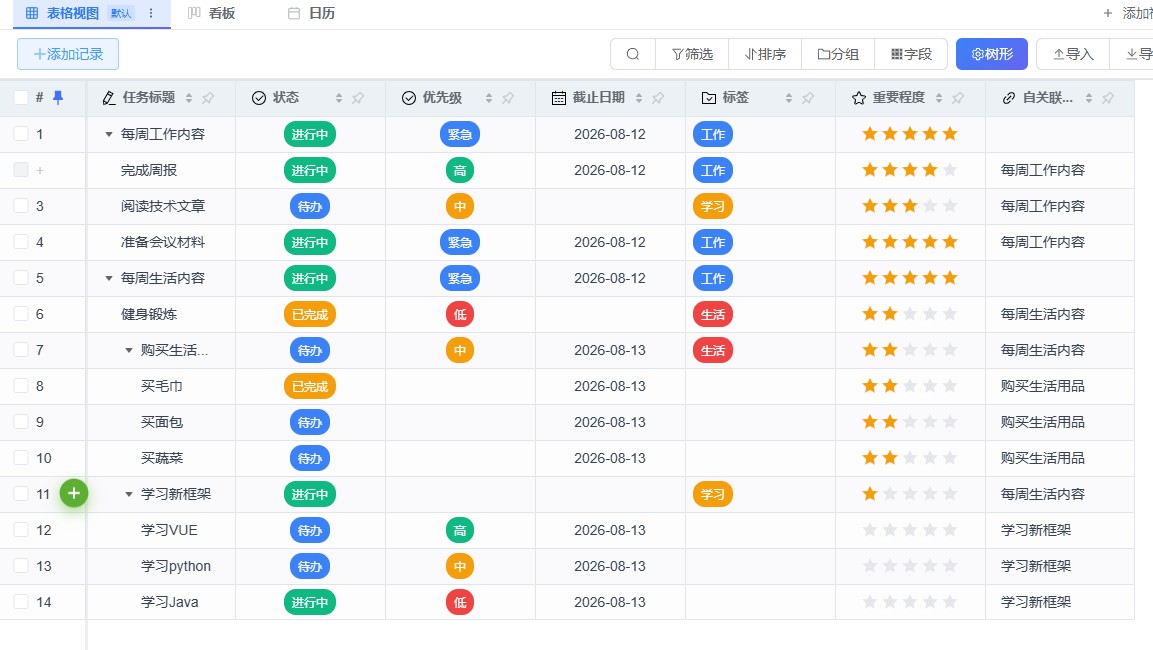
Clear the "Parent Record Field" dropdown in the "Tree" panel to return to a normal flat list. This only changes the display mode and does not delete any record data or field values.
If the link field used as the parent record field is deleted, the tree configuration of the view is automatically removed and the view returns to flat display. Record data is unaffected.
Once tree display is enabled, rows that contain child records show an expand arrow in the first column:
Right-click any record and select "Add Child Record":
The "Promote" option in the context menu moves the current record up one level, making it a sibling of its former parent. This is useful when adjusting task breakdown granularity or reorganizing departments.
Besides the context menu, you can edit the parent record field directly: click the cell and select a record from the linked record list as the parent.
When selecting a parent record, the current record itself is excluded from the list to prevent a circular reference where a record becomes its own parent.
We recommend keeping the hierarchy within 3 to 5 levels. Excessive depth causes:
For genuinely deep business structures, consider expressing them as a combination of a main table plus master-detail tables.
Tree display depends on the integrity of parent-child references. When a view has filter conditions, if a parent record is filtered out while its children remain, the hierarchy chain breaks and those child records appear as independent top-level nodes. Recommendations:
Name the parent record field using the pattern "Parent + business object", for example "Parent Task" or "Parent Department", so team members can easily understand its purpose.
Q1: The "Tree" button is not visible on the toolbar.
The button appears only when the table contains a self-referencing link field. Create a link field pointing to the current table first, as described in section 2.1.
Q2: Why can't the link type be changed to one-to-one or many-to-many?
A hierarchy requires each record to have at most one parent and possibly many children, which is exactly the semantics of "one-to-many". Therefore, once the current table is selected as the linked table, the type is locked to one-to-many.
Q3: The expand arrow does not appear.
Confirm that the record actually has child records (that is, other records whose parent field points to it). If the data is correct but the arrow still does not appear, refresh the page to reload the view data.
Q4: Can a table use both tree table and master-detail at the same time?
Yes. They rely on different fields: tree display uses a self-referencing link field, while master-detail uses link fields pointing to other tables. They do not conflict.
Q5: Will child records be deleted when the parent record is deleted?
No. Child records are retained; they simply lose the parent reference and return to the top level in the tree view.